Data approval overview
DHIS2 has an optional feature that allows authorized users to approve data that has been entered. It allows data to be reviewed and approved at selected levels in the organisation unit hierarchy, so the approval follows the structure of the hierarchy from lower levels to higher levels.
Data is approved for a combination of (a) period, (b) organisation unit and (c) workflow. Data may be approved for the organisation unit for which it is entered, as well as for higher-level organisation units to which the data is aggregated. As part of system settings, you can choose the organisation unit level(s) at which data is approved. It can be approved at higher levels only after it has been approved for all that organisation unit's descendants at lower levels for the same workflow and period. When you approve a workflow, it approves data for any data sets that have been assigned to that workflow.
After a period, organisation unit and workflow combination has been approved, data sets associated with that workflow will be locked for that period and organisation unit, and any further data entry or modification will be prohibited unless it is first un-approved.
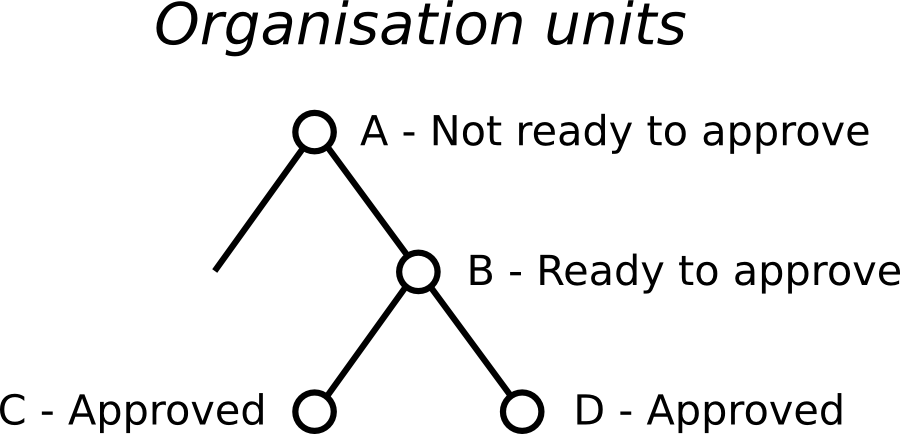
For example, the following diagram illustrates that data has already been approved for organisation units C and D, for a given period and workflow. It may now be approved for organisation unit B for the same period and workflow. But it is not ready to be approved for organization unit A. Before it can be approved for organisation unit A, it must be approved for B, and for any other children of organisation unit A, for that period and workflow.
Approving and accepting
DHIS2 supports two different types of approval processes: either a one-step process where the data is approved at each level, or a two-step process where data is first approved and then accepted at each level. This is illustrated in the following diagram:
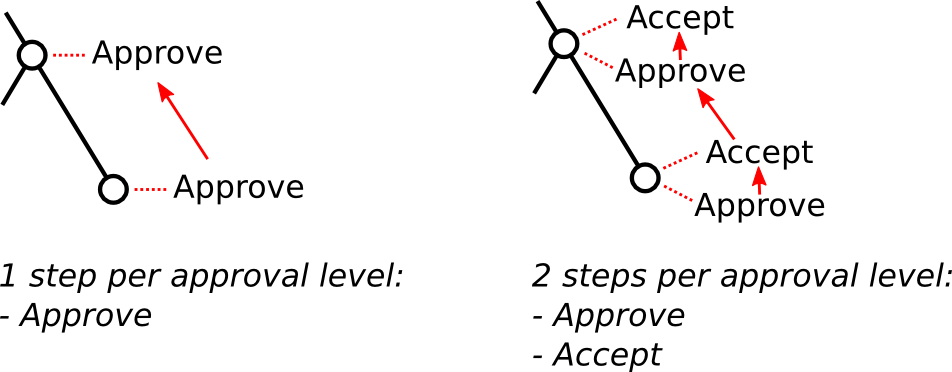
In the one-step process, data is approved at one level, and then approved at the next higher level. Until it is approved at the next higher level, it may be unapproved at the first level. (For example, if the data was approved my mistake, this allows the approver to undo their mistake.) Once the data is approved at the next higher level, it may not be unapproved at the lower level unless it is first unapproved at the higher level.
In the two-step process, data is approved at one level, and then the approval is accepted at the same level. This acceptance is done by a user who is authorized to approve data at the next higher level. Once the data is accepted, it may not be changed or unapproved unless it is first unaccepted.
The two-step process is not required by DHIS2. It is an optional step for a user reviewing data at the next higher level. It has the benefit of locking the acceptance from the level below, so reviewer does not have to worry that the data could be changing from below while it is being reviewed. It can also be used by the higher-level user to keep track of which lower-level data has already been reviewed.
Two-step process can be activated by checking Acceptance required before approval in SystemSettings app under General section.
Authorities for approving data
To approve data, you must be assigned a role containing one of these authorities:
-
Approve data - You may approve data for the organisation unit(s) to which you are assigned. Note that this authority does not allow you to approve data for lower-levels below the organisation unit(s) to which you are assigned. This is useful to separate the users authorized to approve at one level from the users authorized to approve at levels below.
-
Approve data at lower levels - Allows you to approve data for all lower levels below the organisation units assigned to you. This is useful if, for example, you are a district-level user whose role includes approving the data for all the facilities within that district, but not for the district itself. If you are assigned this as well as the Approve data authority, you may approve data at the level of the organisation unit(s) to which you have been assigned, and for any level below.
-
Accept data at lower levels - Allows you to accept data for the level just below the organisation unit(s) assigned to you. This authority can be given to the same users as approve data. Or it may be given to different users, if you want to have some users who accept data from the level below, and a different set of users who approve data to go up to the next level above.
Configuring data approval
In the Maintenance app section under Data approval level you can specify the levels at which you want to approve data in the system. Click the Add new button on this page and select the organisation unit level at which you want approvals. It will be added to the list of approval settings. You may configure the system for approving data at every organisation unit level, or only at selected organisation unit levels.
Note that when you add a new approval level, you may optionally choose a Category option group set. This feature is discussed later in this chapter.
Also in maintenance under Data approval workflow, you can define the workflows that will be used for approving data. Each workflow can be associated with one or more approval levels. Any two workflows may operate at all the same approval levels as each other, some of the same and some different levels, or completely different levels.
If you want data for a data set to be approved according to a workflow, then assign the workflow to the data set when you add or edit the data set. If you do not want data for a data set to be subject to approval, then do not assign any workflow to that data set. For data sets that you want to approve at the same time as each other, assign them to the same workflow. For data sets that you want to approve independently, assign each data set to its own workflow.
Under System Settings -> Analytics, you can control what unapproved data (if any) will appear in analytics. See the "Analytics settings" section of this user guide. Note that users who are assigned to organisation units where data is ready for approval can alwyas view this data in analytics, as can users assigned to higher-level organisation units if they have the Approve data at lower levels authority or the View unapproved data authority.
Data visibility
If the option Hide unapproved data in analytics is enabled, data will be hidden from viewing by users associated with higher levels. When determining whether a data record should be hidden for a specific user, the system associates a user with a specific approval level and compares it to the level to which the data record has been approved up to. A user is associated with the approval level which matches the level of the organisation unit(s) she is linked to, or if no approvel level exists at that level, the next approval level linked to an organisation unit level below herself. A user will be allowed to see data which has been approved up to the level immediately below her associated approval level. The rationale behind this is that a user must be ablet to view the data that has been approved below so that she can eventually view and approve it herself.
Note that if the user has been granted the View unapproved data or the ALL authority she will be able to view data irrespective of the approval status.
Lets consider the following example: There are four organisation unit levels, with approval levels associated with level 2 and 4. User A at country level (1) gets associated with approval level 1 since the approval level exists at the same level as the organisation unit level. User B gets associated with approval level 2 since there is no approval level directly linked to her organisation unit level and approval level 2 is the immediate level below. User C gets associated with approval level 2. User D is below all approval levels which implies that she can see all data entered at or below her organisation unit level.
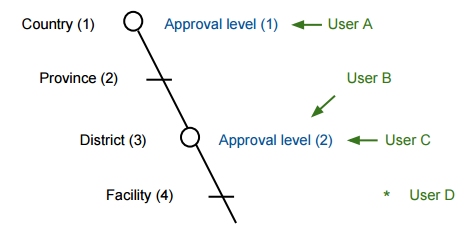
Using this example, lets consider some scenarios:
-
Data is entered at facility level: Only User D can see the data, as the data has not yet been approved at all.
-
Data is approved by User D at facility level: Data becomes visible to User C and User B, as the data is now approved at their level.
-
Data is approved by User C at district level: Data becomes visible to User A, as data is now approved at the level immediately below herself.
Approving data
To approve data, go to Reports and choose Data Approval. When this report shows data that is configured for approval, it shows the approval status of the data in the report. The approval status will be one of the following:
-
Waiting for lower level org units to approve - This data is not yet ready to be approved, because it first needs to be approved for all the child organisation units to this organisation unit, for the same workflow and period.
-
Ready for approval - This data may now be approved by an authorized user.
-
Approved - This data has already been approved.
-
Approved and accepted - This data has already been approved, and also accepted.
If the data you are viewing is in an approval state that can be acted upon, and if you have sufficient authority, one or more of the following actions will be available to you on the Data Approval form:
-
Approve - Approve data that has not yet been approved, or that was formerly approved and has been unapproved.
-
Unapprove - Return to an unapproved state data that has been approved or accepted.
-
Accept - Accept data that has been approved.
-
Unaccept - Return to an unaccepted (but still approved) state data that has been accepted.
In order to unapprove data for a given organisation unit, you must have the authority to approve data for that organisation unit or to approve data for a higher-level organisation unit to which that data is aggregated. The reason for this is as follows: If you are reviewing data for approval at a higher organisation unit level, you should consider whether the data at lower organisation units are reasonable. If all lower-level data looks good, you can approve the data at the higher level. If some lower-level data looks suspect, you can unapprove the data at the lower level. This allows the data to be reviewed again at the lower level, corrected if necessary, and re-approved up through the organisation unit levels according to the hierarchy.
Approving by category option group set
When defining an approval level, you specify the organisation unit level at which data will be approved. You may also optionally specify a category option group set. This is useful if you are using category option groups to define additional dimensions of your data, and you want approvals to be based on these dimensions. The following examples illustrate how this can be done within a single category option group set, and by using multiple category option group sets.
Approving by one category option group set
For example, suppose you define a category option group set to represent NGOs who serve as healthcare partners at one or more organisation units. Each category option group within this set represents a different partner. The category option group for Partner 1 may group together category options (such as funding account codes) that are used by that partner as a dimension of the data. So data entered by Partner 1 is attributed to a category option in Partner 1's category option group. Whereas data entered by partner 2 is attributed to a category option in Partner 2's category option group:
| Category option group set | Category option group | Category options |
|---|---|---|
| Partner | Partner 1 | Account 1A, Account 1B |
| Partner | Partner 2 | Account 2A, Account 2B |
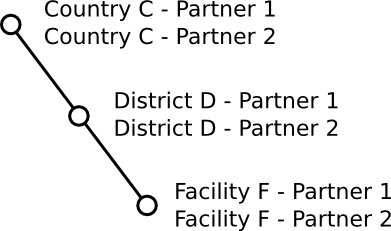
Each partner could enter data for their accounts independently of the other, for the same or different workflows, at the same or different facilities. So for example, data can be entered and/or aggregated at the following levels for each partner, independently of each other:
Tip
You can use the sharing feature on category options and category option groups to insure that a user can enter data (and/or see data) only for certain category options and groups. If you don't want users to see data that is aggregated beyond of their assigned category options and/or category option groups, you can assign Selected dimension restrictions for data analysis, when adding or updating a user.
You can optionally define approval levels for partner data within any or all of these organisation unit levels. For example, you could define any or all of the following approval levels:
| Approval level | Organisation unit level | Category option group set |
|---|---|---|
| 1 | Country | Partner |
| 2 | District | Partner |
| 3 | Facility | Partner |
Approving by multiple category option group sets
You can also define approval levels for different category option group sets. To continue the example, suppose that you have various agencies that manage the funding to the different partners. For example, Agency A funds accounts 1A and 2A, while Agency B funds accounts 1B and 2B. You could set up category option groups for Agency A, and Agency B, and make them both part of a category option group set called Agency. So you would have:
| Category option group set | Category option group | Category options |
|---|---|---|
| Partner | Partner 1 | Account 1A, Account 1B |
| Partner | Partner 2 | Account 2A, Account 2B |
| Agency | Agency A | Account 1A, Account 2A |
| Agency | Agency B | Account 1B, Account 2B |
Now suppose that at the country level, you want each partner to approve the data entered by that partner. Once this approval is done, you want each agency to then approve the data from accounts that are managed by that agency. Finally, you want to approve data at the country level across all agencies. You could do this by defining the following approval levels:
| Approval level | Organisation unit level | Category option group set |
|---|---|---|
| 1 | Country | |
| 2 | Country | Agency |
| 3 | Country | Partner |
Note that multiple approval levels can be defined for the same organisation unit level. In our example, Partner 1 would approve country-wide data at approval level 3 from category options Account 1A and Account 1B. Next, Agency A would approve country-wide data at approval level 2 from category options Account 1A (after approval by Partner 1) and Account 2A (after approval by Partner 2.) Finally, after approval from all agencies, country-wide data can be approved at approval level 1 across all category options. Note that approval level 1 does not specify a category option group set, meaning that it is for approving data across all category options.
This example is meant to be illustrative only. You may define as many category option groups as you need, and as many approval levels as you need at the same organisation unit level for different category option group sets.
If you have multiple approval levels for different category option group sets at the same organisation unit level, you may change the approval ordering in the Settings section, under System Approval Settings. Just click on the approval level you wish to move, and select Move up or Move down. If you have an approval level with no category option groups set, it must be the highest approval level for that organisation unit level.